NEEDLENS AI / HOW IT WORKS
From a room photo
to a home task list.
A photo can help you notice the little jobs around home. NeedLens AI turns visible household conditions into suggestions for cleaning, restocking or taking a closer look. You decide which ones belong on your list.
NeedLens AI is available online for adults aged 18 and over. Sign in with a verified account to start with 3 free successful room scans in total. You can also explore the illustrative kitchen sample without an account or upload. Android and new Google Play subscriptions are being prepared for public release.
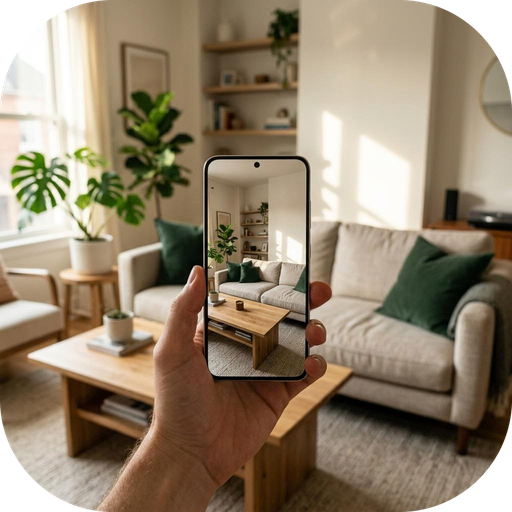
Choose a photo with useful context.
Start with one clear view of the area you want to check, such as a kitchen counter, bathroom surface or laundry area. Good lighting and a steady photo make visible details easier to review. NeedLens cannot see behind furniture, inside containers or outside the frame.
- Open NeedLens in your browser and sign in using email, Google or Apple. Verify your email if prompted.
- Choose a JPEG, PNG or WebP room photo. The browser shows a preview before anything is uploaded.
- Select the room, check the photo for private details and confirm consent before choosing Find my next steps.
Keep faces, addresses, documents and private screens out of the picture. When you confirm a scan, the photo is sent through NeedLens to Google Gemini for analysis. Read the photo-processing and privacy notice before using a personal photo.
Look for ordinary, visible next steps.
Results depend on what the photo actually shows. A scan may return a few suggestions or none when there is not enough useful evidence.
- Clean: a visibly messy counter may suggest a wipe with an appropriate cleaning method.
- Restock: a paper towel roll that appears low may prompt you to check your supplies before adding paper towels to Shopping.
- Check: visible wear may suggest taking a closer look yourself or asking an appropriate professional.
These are examples, not guaranteed findings. NeedLens does not measure exact remaining quantities, diagnose hidden damage, identify contamination or certify that a room is safe. It is not a home inspection.
Review, edit or skip each suggestion.
Read the visible evidence and proposed next step. Correct anything that does not fit your home, keep a useful action, add an optional shopping item or dismiss the suggestion. Nothing becomes a task or purchase automatically.
Check cupboards and existing supplies before buying anything. NeedLens does not order products, book services or schedule work. If a suggestion is inaccurate or unsafe, use its report option or contact support.
Take Actions and Shopping with you.
Your saved home tasks appear in Actions; items you choose to buy appear in Shopping. Mark tasks complete and shopping items purchased as you go.
Sign in to the same verified NeedLens account on another browser to see your saved lists. Changes sync while you are online; check the sync status before switching devices. Offline edits wait on the device where you made them. The Android sync update is still being tested locally and has not been uploaded to Google Play. Your account’s scan allowance is also shared.
You can check sync status, clear device copies and manage your account from Account. Clearing a device copy or signing out does not remove synced cloud items. For the difference between clearing lists and deleting an account, see the data-deletion instructions.
Start with 3 free successful scans.
Each verified account receives 3 free successful scans in total, shared across browser and Android. Opening the homepage sample does not use a scan. The free allowance does not renew when you change browsers or reinstall.
NeedLens Plus and new Google Play subscriptions are being prepared for public Android release; there is no web checkout. Starting the free scans does not enroll you in a subscription. See the current plan details and terms of use.
If a scan does not finish, check the account allowance before retrying: a scan that completed on the server can count even if your connection lost the response. The support guide covers sign-in, verification and scan recovery.
Take a little look.
Explore the fixed kitchen example first, or open the browser app when you are ready to review your own room photo.